MIDI Control
Callie Grams can be controlled from MIDI devices such as keyboards, drum pads, and control surfaces.
Enabling MIDI
Section titled “Enabling MIDI”- Open Preferences → Triggers.
- Select the MIDI input port you want to use.
Mappings are active as soon as a port is selected.
MIDI Learn
Section titled “MIDI Learn”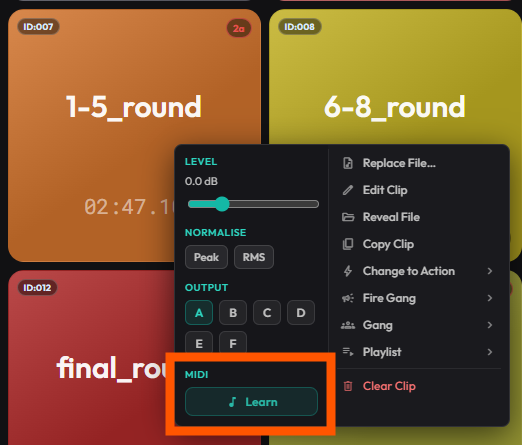
You can learn a MIDI assignment in two places:
From the context menu (quick):
- Right-click a clip.
- In the quick-actions panel on the left, click MIDI → Learn.
- Press the key, pad, or controller you want to assign.
From Clip Settings:
- Right-click a clip → Edit Clip → Triggers tab.
- Click Learn MIDI.
- Press the key, pad, or controller you want to assign.
The MIDI message is saved with the clip.
Learning MIDI on Action Buttons
Section titled “Learning MIDI on Action Buttons”MIDI learn isn’t limited to clips. Event action buttons — Stop All, Fire Gang, Stop Gang, and Stop Output buttons — can also learn a MIDI message from their right-click context menu, and the same menu lets you remove a learned assignment.
Supported Messages
Section titled “Supported Messages”- Note On — trigger a clip.
- Note Off — can be used for stop or hold-style behaviour depending on settings.
Troubleshooting
Section titled “Troubleshooting”- No MIDI input — check the correct input port is selected and no other app is using it.
- Double triggers — some controllers send Note On with velocity 0 instead of Note Off. Callie Grams handles this, but check your controller manual.